
Tamriel Auction House (1.0)
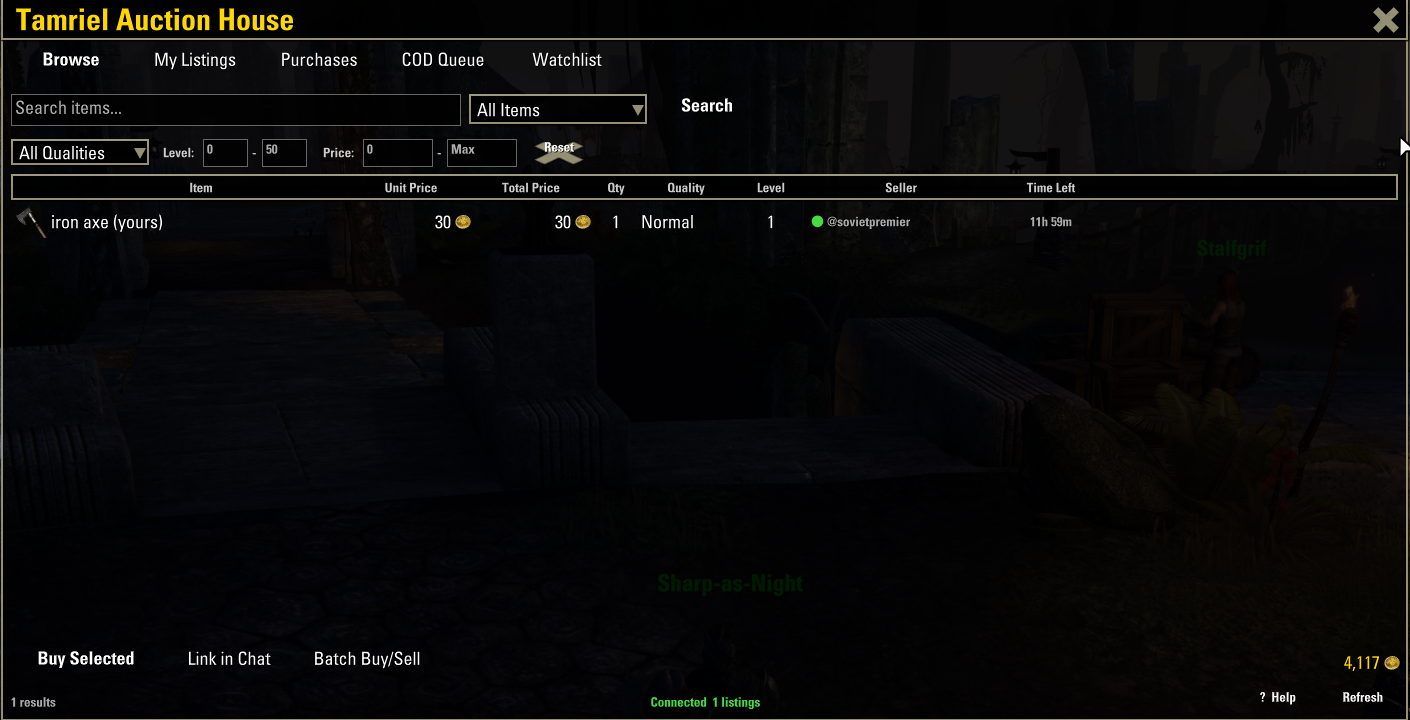
# Tamriel Auction House User Guide & FAQ
## What is Tamriel Auction House?
Tamriel Auction House is a cross-guild, server-wide trading system for Elder Scrolls Online. Unlike guild traders, which require guild membership and only show items from one guild at a time, Tamriel Auction House lets every player list and buy items from a single shared marketplace similar to an MMO auction house.
It consists of three parts that work together:
– **The ESO Addon** An in-game interface for browsing, buying, listing, and managing your trades
– **The Desktop Client** A small background app that syncs your addon data with the central server
– **The Web Dashboard** A browser-based view of all active listings at tamriel-ah.org
—
## Getting Started
### Step 1: Install the Addon
1. Download the **AuctionHouse** addon folder
2. Place it in your ESO addons directory:
– **Windows:** `DocumentsElder Scrolls OnlineliveAddOnsAuctionHouse`
– **EU Server:** Use the `liveeu` folder instead of `live`
– **PTS:** Use the `pts` folder instead of `live`
3. Launch ESO and enable “Auction House” in the addon manager
4. Type `/reloadui` to load the addon
### Step 2: Install the Desktop Client
1. Unzip one of thse Tamriel Auction House zip files inside the AuctionHouse folder that is for your Operating System
2. On first launch, it will auto-detect your ESO installation directory
3. If it doesn’t detect automatically, click **Browse** and select your ESO folder (the one containing the `live` or `liveeu` folder)
4. The client will register your account with the server and begin syncing
5. **Keep the client running** in the background while you play you can minimize it
### Step 3: Open the Auction House
– Type `/ah` in chat to open the Auction House window, or
– Use the keybind you set in ESO’s Controls menu
—
## How Trading Works
Tamriel Auction House uses a **Cash on Delivery (COD)** mail system, which is ESO’s built-in mechanism for sending items with a required payment.
### Selling an Item
1. Open your inventory
2. Right-click an item and select **”List on Tamriel Auction House”**
3. Enter your asking price and choose a listing duration (12 hours to 7 days)
4. Confirm the listing then your ui will reload(to send the data to the server)
5. Your item appears on the Browse tab for all players to see
6. When someone buys your item, you will receive a **desktop notification** with a sound alert telling you to `/reloadui`
7. After reloading, go to the **COD Queue** tab, select the sale, and click **Send COD**
8. The addon opens ESO’s mail window, pre-fills the recipient, item, and details you just type the COD amount and click Send
9. Once the buyer accepts the COD, the sale is complete
### Buying an Item
1. Open the Auction House and go to the **Browse** tab
2. Search for items by name or use the filters (quality, level, price)
3. Click an item to select it (it will highlight in gold)
4. Click **Buy Selected** or double-click the listing
5. Confirm the purchase in the popup dialog then your UI will reload(to send the data to the server)
6. Wait for the seller to send you a COD mail (you’ll see it in your Purchases tab)
7. When the COD arrives, open your mail the addon will verify the item and price match
8. Accept the COD to complete the purchase
### What Happens Behind the Scenes
1. You click Buy → the addon queues a purchase action
2. On `/reloadui`, the desktop client sends this to the server
3. The server marks the listing as reserved for you (24-hour window)
4. The seller gets a desktop notification and sees it in their COD Queue
5. The seller sends you a COD mail via ESO’s mail system
6. You accept the COD → gold transfers to seller, item transfers to you
7. Both sides sync as complete
—
## The Tabs
### Browse
The main marketplace. Shows all active listings from every player on your megaserver (NA or EU).
– **Search Bar** Type an item name to search
– **Category Dropdown** Filter by item category (Weapons, Armor, Consumables, etc.)
– **Quality Dropdown** Filter by item quality (defaults to “All Qualities”)
– **Level Range** Set minimum and maximum level
– **Price Range** Set minimum and maximum price
– **Search Button** Execute the search with current filters
– **Reset Button** Clear all filters
– **Column Headers** Click any column header to sort by that column
Hover over any listing to see the full ESO-style item tooltip.
### My Listings
Shows all items you have listed for sale. From here you can:
– **Cancel Selected** Remove a listing from the market
– **Link in Chat** Post the item link in chat
The Time Left column shows how long until each listing expires.
### Purchases
Shows items you’ve bought that are awaiting delivery. Statuses include:
– **Awaiting COD** Waiting for the seller to send the COD mail
– **COD Sent** Seller sent the COD, check your mail
– **Completed** Transaction finished (automatically removed)
You can cancel a purchase if the seller hasn’t sent the COD yet.
### COD Queue
Shows items you’ve sold that need to be sent to buyers. For each sale:
1. Select the sale
2. Click **Send COD** this opens the mail window with everything pre-filled
3. Type the COD amount (the price you listed it for)
4. Click Send in the ESO mail window
You can also **Release** a sale to put the listing back on the market if you no longer want to sell.
### Watchlist
Track items you’re interested in for price changes.
—
## Buttons & Controls
| Button | What It Does |
|——–|————-|
| **Refresh** | Reloads the UI to fetch the latest data from the server. Also disables Batch mode if active. |
| **Help (?)** | Shows help information and keybinds |
| **Search** | Searches listings by name and currently applied filters |
| **Reset** | Clears all search filters back to defaults |
| **Buy Selected** | Purchases the selected listing (Browse tab) |
| **Cancel Selected** | Cancels your selected listing (My Listings tab) |
| **Send COD** | Opens the mail window to send a COD for a sale (COD Queue tab) |
| **Cancel Purchase** | Cancels your purchase, releasing the listing (Purchases tab) |
| **Release** | Puts a sold listing back on the market (COD Queue tab) |
| **Link in Chat** | Posts the item link into your chat window |
| **Batch Buy/Sell** | Toggles batch mode disables auto-reload so you can buy or list multiple items without interruption. Click Refresh when done. |
—
## Batch Mode
When you buy or list an item, the addon normally triggers an automatic `/reloadui` to sync your action with the server immediately. This is great for single transactions but interrupts your flow when you want to do several at once.
**Batch Buy/Sell** disables the auto-reload:
1. Click **Batch Buy/Sell** the button turns gold and shows “Batch: ON”
2. Buy or list as many items as you want without any reloads
3. When finished, click **Refresh** to sync everything at once
4. Refresh also turns Batch mode back off
—
## The Desktop Client
The desktop client is the bridge between your ESO addon and the central server. It must be running for your listings to appear on the market and for you to receive purchase notifications.
### What It Does
– Pushes your new listings, purchases, and cancellations to the server
– Pulls other players’ listings so you can browse them in-game
– Polls for purchase notifications every 30 seconds
– Shows a popup window with sound when someone buys your listing
– Detects your megaserver (NA/EU/PTS) automatically from your ESO install path
### Sales History Tab
The desktop client has a **Sales History** tab showing all your sales and their statuses:
– **Awaiting COD** Buyer purchased, you need to send the COD
– **COD Sent** You sent the COD, waiting for buyer to accept
– **Completed** Sale finished
### Keeping It Running
– Minimize the client window it continues syncing in the background
– The client auto-reconnects if the server restarts
– You can close it when you’re done playing, but your listings will stay active on the server
—
## Web Dashboard
Visit **tamriel-ah.org** to browse all active listings from your web browser. You can:
– Search by item name
– Switch between NA and EU megaservers
– View item tooltips
– See prices and seller information
The web dashboard is read-only to buy or sell, use the in-game addon.
—
## Slash Commands
| Command | Description |
|———|————-|
| `/ah` | Open the Auction House window |
| `/ah refresh` | Same as clicking the Refresh button |
| `/ah help` | Show help in chat |
—
## Frequently Asked Questions
### General
**Q: Do I need to be in a trading guild to use this?**
No. Tamriel Auction House is completely independent of the guild trader system. Any player can list and buy items.
**Q: Does this cost gold to use?**
Listing an item is free. Buying is free you only pay the item’s listed price via COD.
**Q: Does this work on console?**
No. ESO addons are only available on PC/Mac. Console players cannot use addons.
**Q: Can NA players see EU listings?**
No. Listings are separated by megaserver. NA players only see NA listings, EU players only see EU listings.
### Buying
**Q: I bought an item but it still shows “Awaiting COD.” What do I do?**
Wait for the seller to send you the COD mail. The seller gets a desktop notification when you buy, but they need to be online and `/reloadui` to see it in their COD Queue. Most sellers respond within a few hours.
**Q: I got a popup saying “Purchase Failed” what happened?**
Another player bought the same item before your purchase synced with the server. This can happen if there’s a delay between when you clicked Buy and when you did `/reloadui`. Your gold was not affected no money was taken.
**Q: Someone bought an item I wanted right before me. Can I get it?**
No. Purchases are first-come, first-served based on when the purchase reaches the server. The addon will notify you with a popup if your purchase failed.
**Q: How long does the seller have to send the COD?**
The seller has 24 hours. If they don’t send the COD within that time, the reservation expires and the listing goes back on the market.
**Q: I received a COD mail how do I know it’s legitimate?**
The addon automatically verifies COD mails when you open them. It checks that the item and price match your purchase. If anything is wrong, you’ll see a red warning popup telling you NOT to accept. Only accept CODs that show a green “COD verified” message.
**Q: Can a seller scam me by changing the COD amount?**
The addon checks the actual COD amount set by ESO (not the text in the mail body). If the seller sets a different COD amount than the listing price, you’ll get a red warning telling you not to accept.
### Selling
**Q: How do I know when someone buys my item?**
The desktop client shows a popup notification with a sound. The popup tells you the item name, buyer, price, and instructs you to `/reloadui` in ESO to see it in your COD Queue.
**Q: I got a sale notification but don’t see it in my COD Queue.**
Type `/reloadui` in ESO. The COD Queue only updates when the UI reloads and syncs with the server.
**Q: I cancelled a listing but someone bought it at the same time. What happens?**
If your cancellation reaches the server first, the purchase fails and the buyer gets notified. If the purchase reaches the server first, the addon detects that you cancelled locally and automatically releases the listing back to the market no action needed from you.
**Q: Can I change the price of a listing?**
Not directly. Cancel the listing and create a new one at the new price.
**Q: What happens when my listing expires?**
It’s removed from the market automatically. The listing fee is not refunded.
### Desktop Client
**Q: Do I need the desktop client running to trade?**
Yes. The desktop client is what syncs your addon data with the server. Without it, your listings won’t appear on the market and you won’t receive purchase notifications.
**Q: Can I run the desktop client on a different computer?**
It needs access to your ESO SavedVariables folder, so it should run on the same computer where you play ESO.
**Q: The desktop client says “Sync error” what do I do?**
This usually means a temporary connection issue. The client will retry automatically. If it persists, check your internet connection and make sure the server (tamriel-ah.org) is reachable.
**Q: I closed the desktop client. Are my listings gone?**
No. Your listings remain active on the server. When you reopen the client and `/reloadui`, everything will sync back up.
### Technical
**Q: Is my data safe?**
Your API key is stored locally and hashed on the server. The addon communicates through the desktop client, which uses HTTPS to talk to the server. No ESO passwords are ever transmitted.
**Q: How often does data sync?**
The desktop client syncs when you `/reloadui` or click Refresh. It also polls for notifications every 30 seconds. Listings from other players are updated via delta sync only changes since your last sync are transferred.
**Q: Why does the addon need `/reloadui` to sync?**
ESO addons can only read and write to SavedVariables files when the UI loads. The desktop client writes server data to your SavedVariables, and the addon reads it on the next UI load. This is an ESO limitation, not an addon limitation.
**Q: My addon shows an error on load. What should I do?**
Try `/reloadui` first. If the error persists, check that you have the latest version of both the addon and the desktop client. You can also try deleting the addon’s SavedVariables file (AuctionHouse.lua in your SavedVariables folder) and doing a fresh `/reloadui` this will reset your local data but your server-side listings remain intact.
—
## Tips
– **Use Batch mode** when listing or buying multiple items to avoid repeated reloads
– **Keep the desktop client minimized** while playing it’s lightweight and uses very little CPU
– **Check your COD Queue regularly** after getting sale notifications
– **Hover over items** in the Browse tab to see full ESO tooltips before buying
– **Sort by Unit Price** to find the best deals on stackable items
– **Right-click listings** for a context menu with additional options like linking in chat