
OverloadIndicator (1.8.2)
== Overview ==:banana:
Overload Indicator is a lightweight Sorcerer addon that shows, at a glance, whether your
ultimate “Overload” (both Power Overload and Energy Overload morphs) is currently ON or OFF.
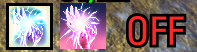
The status is displayed as an on-screen icon that lights up when active and goes dark when not.
== Features ==
– Overload active: the icon turns red and a pulsing red glow lights it up.
– Overload inactive: the icon is dimmed (optionally hidden completely).
– Ultimate warning: while Overload is active, a large red “OFF” is shown in the center of the
screen when your ultimate drops below a configurable value (default 150). Display time is
adjustable from 3 to 30 seconds.
– Automatically hidden while menus (inventory, map, etc.) are open.
– Optional “only show when Overload is slotted on the current bar” mode (off by default).
– Warning position is adjustable (sliders, commands, or drag in preview mode).
– Settings menu and chat messages switch between Japanese and English automatically.
– Adjustable icon size (32-160, default 58) and display scale.
– Drag the icon to move it, or set its position with commands. Position and settings are
saved automatically.
– Drawn on top of the skill bar.
== Settings (default values) ==
– Lock position …………………………………… OFF
– Hide when Overload is OFF ………………………… OFF
– Only show when Overload is slotted on the current bar .. OFF (always shown)
– Hide while menus are open ………………………… ON
– Show center-screen warning when ultimate is low …….. ON
– Warning ultimate threshold ……………………….. 150
– Warning display time …………………………….. 5 seconds
– Warning position X / Y (offset from center) ………… 0 / 0
– Icon size ………………………………………. 58
– Display scale …………………………………… 100%
== Installation ==
1. Extract the zip and place the OverloadIndicator folder in:
DocumentsElder Scrolls OnlineliveAddOns
2. Enable the addon from the in-game Add-Ons menu.
3. Optional: install LibAddonMenu-2.0 to use the in-game settings menu.
(All settings are also available via chat commands without it.)
== Moving the icon ==
/overload unlock -> drag the icon -> /overload lock
== Moving the warning ==
Turn on “Warning preview mode” in the settings menu (or type /overload warnpreview),
switch to cursor mode, and drag the framed “OFF” to where you want it. The position is
saved automatically. Turn preview mode off when you are done.
== Chat Commands ==
/overload lock | unlock ……… Lock / unlock the icon position
/overload hide | show ……….. Hide / show the icon while Overload is OFF
/overload slotonly on|off ……. Only show when Overload is slotted on the current bar
/overload menuhide on|off ……. Hide while menus are open
/overload warn on|off ……….. Enable / disable the low-ultimate warning
/overload warnat ……. Ultimate value that triggers the warning
/overload warndur ….. Warning display time (3-30)
/overload warnpos ……. Warning position (offset from screen center)
/overload warntest ………….. Show a warning preview
/overload warnpreview ……….. Toggle preview mode (drag the warning to move it)
/overload lang ja|en|auto ……. Set language manually
/overload size ……… Icon size (32-160)
/overload moveto …….. Set position directly
/overload move …….. Move relative to the current position
/overload reset …………….. Reset position
/overload debug …………….. Print internal state (for troubleshooting)
—————————————-
This addon and this description were created by AI.