
Command Codex (1.0.0)
Command Codex
All your slash commands in one place
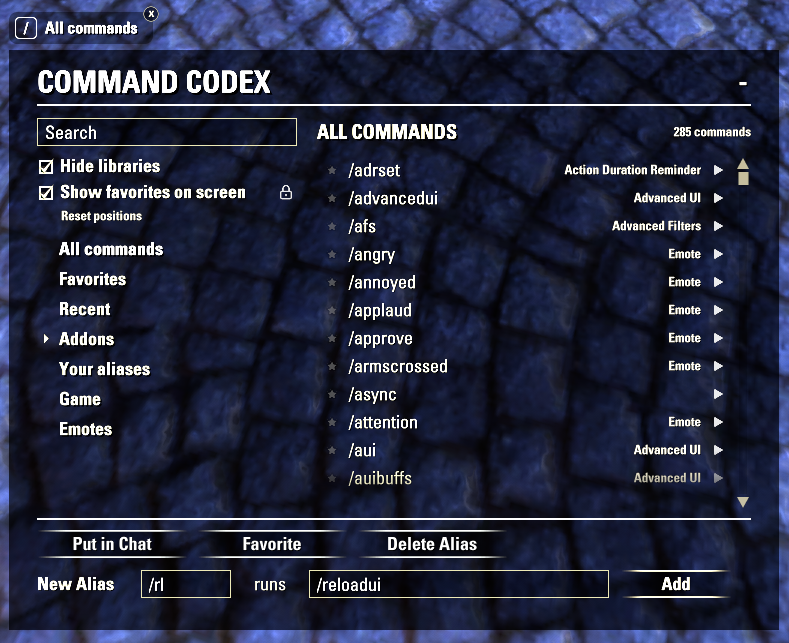
Got tired of forgetting what an addon’s command was called, or which addons even have one? So I made this. Command Codex shows every slash command in the game in one window, sorted by the addon it comes from. You can run any of them with one click, keep your favorites on screen and even put them on a key.
Who it’s for
This addon is especially useful if you use a lot of addons. Most addons have slash commands, but nobody remembers them all and the game has no list of them. With Command Codex you don’t need to look them up on addon pages anymore, it’s all in one window menu.
Why Command Codex?
Everything in one list: game commands, addon commands and all emotes
Knows where each command comes from, so every addon gets its own neat group
Made to be used, not just looked up: run commands with one click, from your screen or with a key
Fits the way you play: different favorites per character, or automatically in PvP or at home
Feels like part of the game, in English, German, French or Spanish
What it does
Shows all commands: game commands, addon commands and emotes
Sorts them by addon, so you see which commands each addon has
Search box, plus a list of your favorites and the commands you used recently
An arrow next to every command to run it, double-click to put it in chat first
Favorites show up as small buttons on your screen that you can move anywhere
Put your first 5 favorites on a key, the key then shows on the button
Different favorites per character, or switch automatically in PvP or in your house
Write your own notes on commands so you remember what they do
Make short versions of long commands, for example /rl for /reloadui
English, German, French and Spanish
Libraries
LibAddonMenu-2.0 (optional): only needed for the settings page (language and favorite sets). Everything else works without it.
No other libraries are needed. Most players already have LibAddonMenu-2.0, and you can also find it on Minion.
Installation
Easiest way: Minion
If you use the Minion addon manager, search for Command Codex, click Install, and you’re done. Minion also keeps the addon up to date for you.
Manual install
Download and open the .zip file.
Drag the CommandCodex folder into your AddOns folder: Windows / Mac: DocumentsElder Scrolls OnlineliveAddOns
Start the game and make sure Command Codex is ticked under Add-Ons.
How to use it
Open the window with the Command Codex button (top left) or type /codex
Pick a category on the left, or just type in the search box
Click the small arrow to run a command, or the star to add it to your favorites
Right-click a command if you want to put it on a key or write a note on it
Favorites on your screen
Every favorite gets its own small button on your screen. Drag them where you want them, then click the padlock in the window so they can’t move anymore. If you ever drag one somewhere by accident, click Reset positions and they all go back to the top of your screen.
Want other favorites on another character or in PvP? You can make different sets in Settings > Addons > Command Codex.
The button
You can drag it wherever you like and the window will open under it. Right-click it to show or hide your favorites. Don’t want it on your screen? Click the little x to hide it and type /codex whenever you want it back.
How it knows which addon a command belongs to
The game doesn’t keep track of this, so the addon checks it while your addons are loading. It gets almost all of them right. The few it can’t figure out are listed under Other.
If you find a bug or think something is off, leave a comment and I’ll take a look.
Disclaimer: This addon keeps updating and improving each new patch.
2026 brianmit. Free for personal use. Please don’t re-upload or share modified versions without asking first.