
Inventory Companion (1.1.0)
## AI Disclosure
Parts of this add-on’s codebase and structure were generated with AI assistance. The author (@Tim-P) has personally reviewed and tested the add-on, including the release test suite, and is responsible for its code and maintenance. Please see the included release review document for detailed results.
## Required dependency
LibAddonMenu-2.0 version 43 or newer is required.
# Inventory Companion Features
This overview describes features implemented in the current addon. For setup and step-by-step instructions, see (./UserManual.md).
## Bank and chest helpers
**Crafted-item deposit and withdrawal.** If, like me, you craft several days’ worth of gear ahead with LazyWritCrafter, you know how repetitive it can be to move it between your backpack and bank by hand. You just want to jump into a trial, but the bank is full of other characters’ crafted items. Deposit your tank’s gear on top of those, and sorting it all out later can be a pain. Inventory Companion moves supported items between your backpack and bank with a single keypress. It only transfers items crafted by the current character, so your other characters’ gear stays safe. The bank must be open, and you need to assign keys to the Deposit and Withdraw actions in the game’s keybindings. Transfers are limited to the addon’s built-in item list, which currently focuses on max-level crafting writ gear. (I should probably add all the other levels – I’ll get to it sometime this year, or you could do it – its all in one file. If you want to – let me know – the repo’s on github)
**House-chest stack merging.** If you have a lot of surveys or treasure maps in your bank and house chests, you may find yourself hunting for the chest with the Blacksmith’s Survey for Auridon so you can add the copies from your backpack. Now you just need to open each chest in turn. Inventory Companion looks for matching stacks with room and moves matching items from your backpack onto them. You can turn this feature off in the settings.
**Move just one item without the ‘split’ window. Move all but one item.** Ever want to take just one item from a stack in your bank, backpack, or house chestor take all *except* one? (Maybe you are obsessive like me and keep at least one of every possible survey in alphabetical order across your first three 30-slot chests and want to preserve that organization). Instead of moving a stack to your backpack, splitting it, and moving the unwanted items back, use the handy right-click options to deposit or withdraw one item or all but one. One click and you’re done!
## Space and currency panels
**Backpack and bank capacity bars.** It’s easy to lose track of how close your storage is to full. Inventory Companion provides movable progress bars showing used slots against capacity. In the settings, choose which resources get their own bar and set the colors and thresholds for warning (amber) and danger (red). Currently ZOS only has three capped resources – backpack space, bank space, and Transmute Crystals, each of which can have its own bar. It would be good to have the bar only pop up at a certain percentage value as well – but I haven’t done that yet.
**Currency Summary Panel.** There are a *lot* of currencies in this game: Tel Var, Transmute Crystals, Crown Gems, Outfit Change Tokens, Trade Bars, and more. It can be annoying to open your inventory, click the currency tab, and squint at the screen to see how much of each you have. Inventory Companion helps by listing available currencies in the settings, where you can choose which ones to track and whether to show your character’s balance, your bank balance, or both. You can also enable a notification for changes to a currency. The panel can hide currencies with a zero balance, too. For example, track Tel Var on your character and it stays out of sight until you collect some; deposit it in the bank and it disappears again if the bank location isn’t selected.
## Item tracking
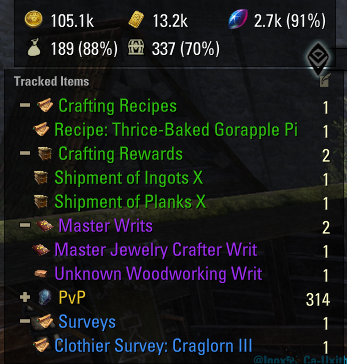
**Live Item Tracker.** It doesn’t stop with currencies. We all care more about some items than others (sorry, Lorkhan’s Tears). Want to see at a glance how many Nirncrux you have, or get a notification when you find one? Inventory Companion provides a movable HUD panel for the items that matter to you. Choose whether to show each item on the panel, notify when you gain it, or both. Add items in the tracking editor, or right-click an item in your backpack or bank and choose **Add to Tracked Items**.
**Custom Groups.** Too much work to track items one by one? You can create groups with lists of name patterns and wildcards. For example, a “Rare Mats” group could match any item whose name contains “nirncrux” or is “perfect roe.” Matching items can appear together in a group on the tracker, and you can enable notifications when you gain a match. Expand the group to see its items, or collapse it to see the group total.
**Built-in item groups.** But even that seems like too much trouble? You don’t have to set up groups from scratch: the addon comes with a collection of groups I personally use, plus some I thought other players might like. I may be a bit obsessive about some things and laissez-faire about others, so you can rename a built-in group, hide it, change its patterns, or just laugh at it.
## Profiles
**Account-wide and character-specific tracking lists.** A single item list may not fit every character’s activities: your crafter may care about different items than your mules do. The addon uses an account-wide list of tracked items, rules, and groups by default, but you can switch any character to a separate list. You can copy a setup from one character to another, from a character to the account-wide list, or from the account-wide list to a character.